Adding a Buy One Get One Free (BOGO) promotion
A Buy One Get One (BOGO) promotion gives the client a reward product free or at a discount when they buy a trigger product. The reward can be the same product ("buy one get one free") or a different one ("buy two balms, get a beard wash free").
In this example clients who buy two Beard Balm - tobacco, cedar receive a Beard Wash at no charge.
- Click Settings in the left menu.
- Under Promotions, click Buy One Get One.

- Click Add New.
- Under Promotion Details, enter the Promotion Name and a Description. Set Status to Active when you want the promotion to run.
- Under BOGO Details, set up the deal:
- Trigger Product - the product or service the client must buy.
- Trigger Quantity - how many of it they must buy, for example 2.
- Reward Product - the product or service they receive. Leave this blank to reward the same product as the trigger.
- Reward Type - Free, Percentage Off or Fixed Amount Off.
- Reward Value - the percentage or dollar amount, required when the reward type is Percentage Off or Fixed Amount Off.
- Reward Quantity - how many reward items the client receives, usually 1.
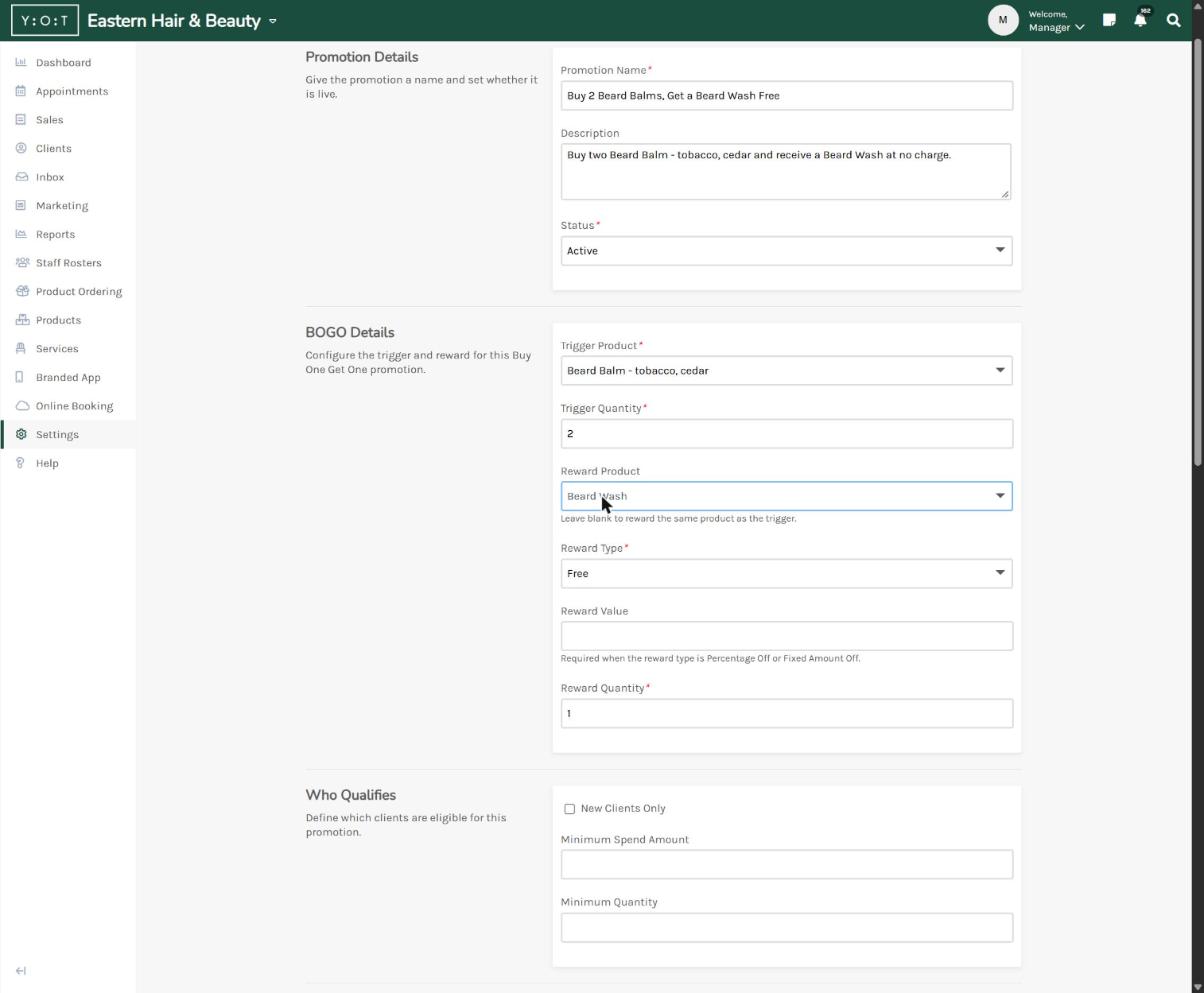
- Under Who Qualifies, set any conditions for the client or sale, or leave them blank.
- Under Applies To, there are no service and product lists. The deal applies to the trigger and reward products you chose above. Leave All Staff ticked, or untick it and choose the staff the promotion applies with.
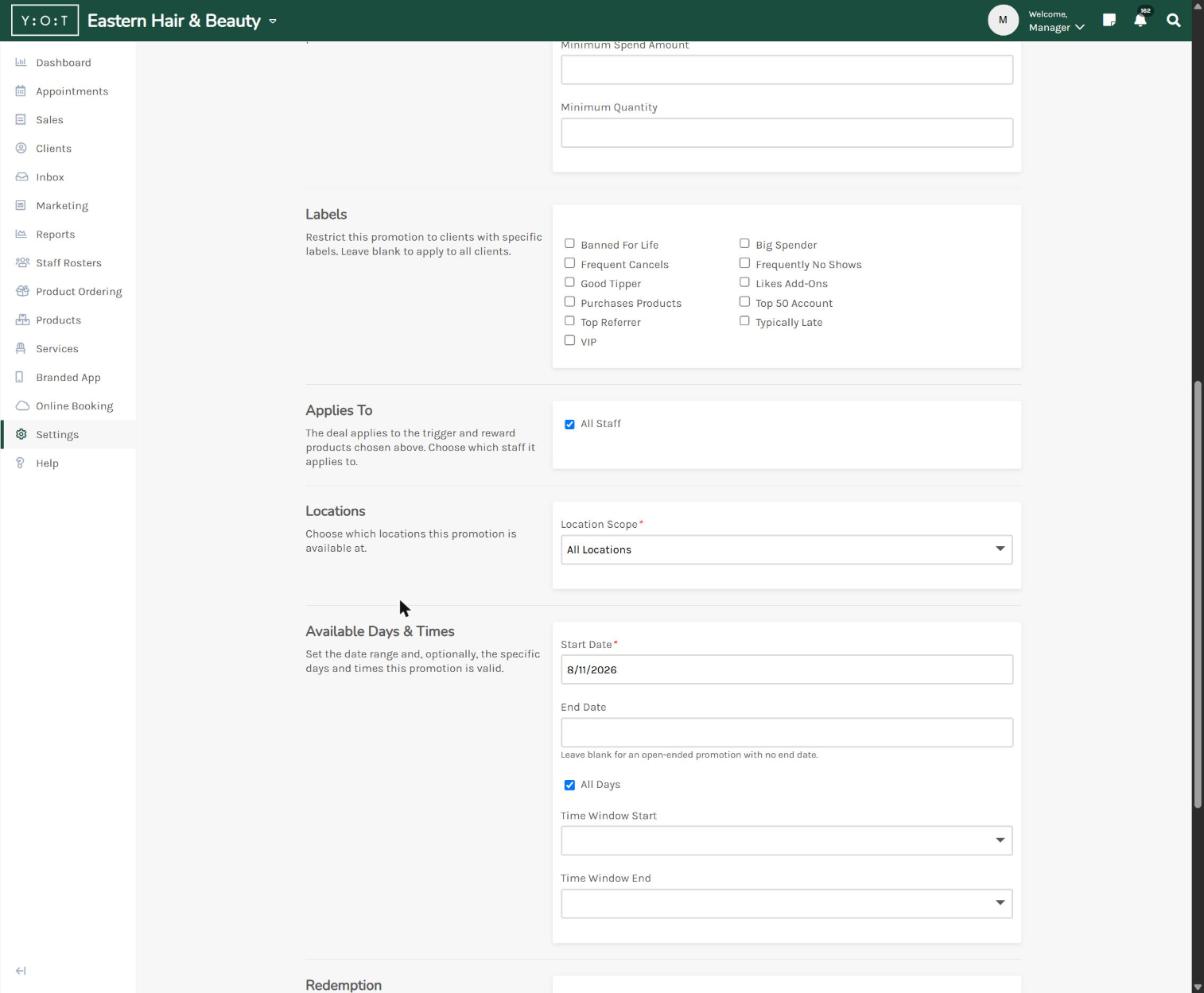
- Under Locations and Available Days & Times, choose where and when the promotion runs.
- Under Redemption, leave Redemption Mode as Automatic so the reward applies as soon as the trigger and reward items are both on the sale, or choose Manual or Code Required.
- Under Limits, optionally set redemption limits. Tick Once Per Sale if a client who buys four balms should only receive one free wash, not two.
- Click Save.
At the till the reward is only given once the trigger quantity has been reached and the reward product is on the sale. If the client has bought the trigger items but the reward item has not been added, the Apply Promotions dialog tells staff which product to add. See Applying Promotions to a Sale.